DripsyRealmAR
Unity SDK
Drop the DripsyRealmAR package into any Unity project and get LiDAR property scanning, AI-staged digital twins, vacant-lot AR overlays, and world-placed listing ads — all wired to your Parasol account.
Capabilities
Everything in the package
LiDAR & Depth Scan
Scan any property interior or exterior into a point-cloud digital twin using iPhone Pro or Android depth cameras.
AR Staging
Stream staged furniture and finishes directly into Unity scenes — vacant, staged, and proposed modes built in.
Vacant Lot Overlay
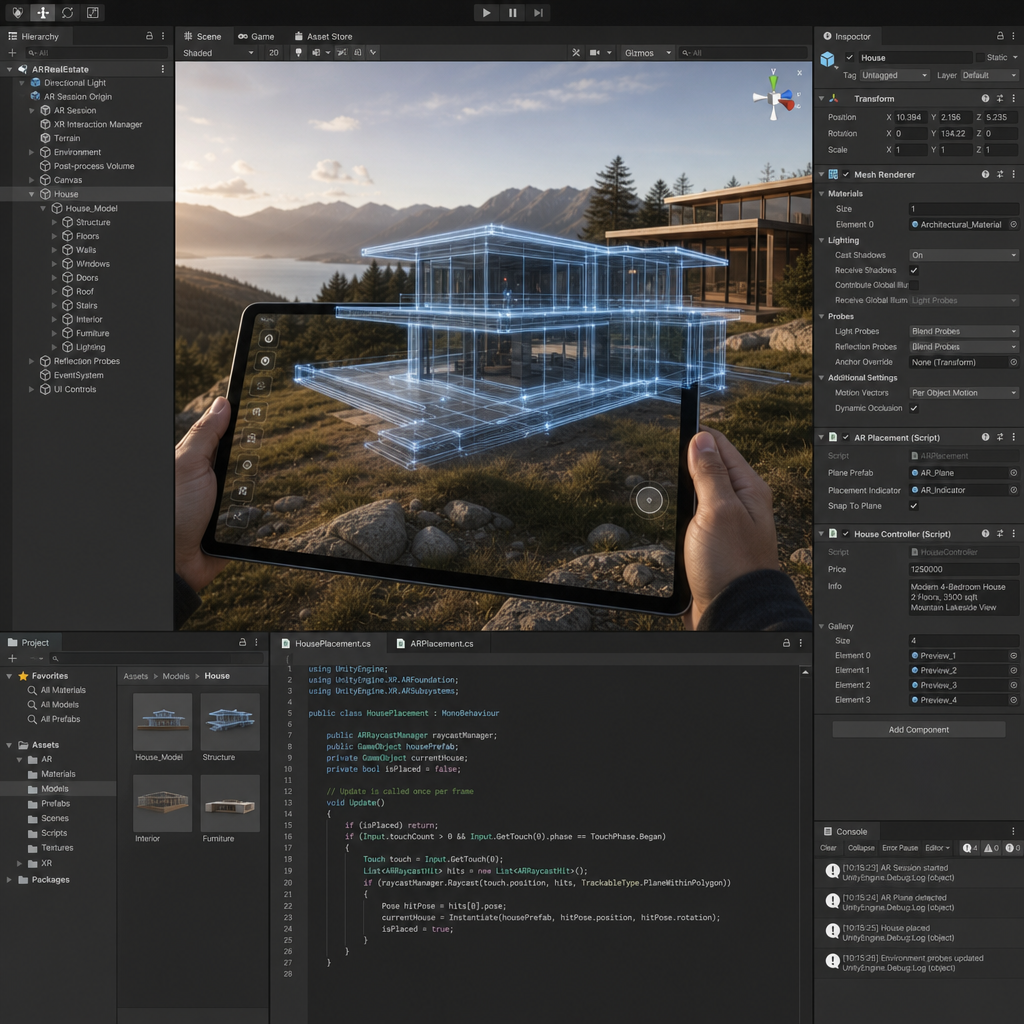
Anchor a proposed build to GPS coordinates. Buyers stand on-site and see the finished home in photorealistic AR.
World AR Ads
Pin property listing billboards anywhere on Earth. The ad appears in AR when a buyer's device enters range.
Digital Twins
Every scan produces a fully navigable 3D twin synced with your Parasol Spaces dashboard in real time.
AI Auto-Stage
One API call to generate photorealistic staged renderings for any room — warm, modern, or proposed build styles.
Setup
Get up and running
Download the package
Click Download SDK above to get DripsyRealmAR_Complete.unitypackage. It includes all scripts, prefabs, shaders, and sample scenes.
# Package contents
Assets/
  DripsyRealmAR/
    Runtime/          # Core AR, twin, ad scripts
    Editor/           # PackageExporter + inspector tools
    Samples/          # VacantLot, ARads, DigitalTwin scenes
    Shaders/          # Holographic wireframe materials
Prefabs/ # PropertyAnchor, AdBillboardImport into Unity
In Unity, go to Assets → Import Package → Custom Package and select DripsyRealmAR_Complete.unitypackage. Requires Unity 2022.3 LTS or newer with AR Foundation installed.
"color:oklch(0.75 0.12 195)">using UnityEditor;
"color:oklch(0.75 0.12 195)">using UnityEngine;
"color:oklch(0.75 0.12 195)">using System.Linq;

"color:oklch(0.75 0.12 195)">public "color:oklch(0.75 0.12 195)">class PackageExporter
{
    [MenuItem("DripsyRealm/Export Full Package")]
    "color:oklch(0.75 0.12 195)">public "color:oklch(0.75 0.12 195)">static "color:oklch(0.75 0.12 195)">void Export()
    {
        "color:oklch(0.75 0.12 195)">string[] assets = AssetDatabase.FindAssets(
            "t:DefaultAsset", "color:oklch(0.75 0.12 195)">new[] { "Assets/DripsyRealmAR" });
        AssetDatabase.ExportPackage(
            assets.Select(AssetDatabase.GUIDToAssetPath).ToArray(),
            "DripsyRealmAR_Complete.unitypackage",
            ExportPackageOptions.IncludeDependencies |
            ExportPackageOptions.Recurse);
        Debug.Log("DripsyRealmAR package exported successfully!");
    }
}Add your API key
Create a ParasolConfig asset (right-click in Project → Create → ParasolAR → Config) and paste your API key from the Parasol dashboard.
// ParasolConfig.asset — set in Unity Inspector
// or pass inline at runtime:
"color:oklch(0.75 0.12 195)">var client = "color:oklch(0.75 0.12 195)">new ParasolClient("psl_YOUR_KEY_HERE");Start building
Use the code samples on the right to load digital twins, place AR ads, and launch vacant-lot overlay sessions from any MonoBehaviour.
"color:oklch(0.75 0.12 195)">using ParasolAR;
"color:oklch(0.75 0.12 195)">using UnityEngine;

"color:oklch(0.75 0.12 195)">public "color:oklch(0.75 0.12 195)">class PropertyDemo : MonoBehaviour
{
    // Paste your Parasol API key from the Dashboard
    "color:oklch(0.75 0.12 195)">private const "color:oklch(0.75 0.12 195)">string API_KEY = "psl_YOUR_KEY_HERE";

    "color:oklch(0.75 0.12 195)">async "color:oklch(0.75 0.12 195)">void Start()
    {
        // Initialise the Parasol AR client
        "color:oklch(0.75 0.12 195)">var client = "color:oklch(0.75 0.12 195)">new ParasolClient(API_KEY);

        // Load a digital twin by shareId
        "color:oklch(0.75 0.12 195)">var twin = "color:oklch(0.75 0.12 195)">await client.LoadTwin("your-property-share-id");

        // Anchor it to a GPS coordinate (vacant lot AR)
        "color:oklch(0.75 0.12 195)">var anchor = "color:oklch(0.75 0.12 195)">new PropertyAnchor(
            latitude:  30.265f,
            longitude: -97.740f,
            twin: twin);

        ARSession.Place(anchor);
    }
}
Full API reference available to licensed developers after signing in with a Parasol account.
Requirements
System requirements
Unity
2022.3 LTS or 6.x
AR Foundation
5.0+
Target platforms
iOS 16+ · Android 12+
Render pipeline
URP or HDRP
Ready to build with DripsyRealmAR?
Download the SDK, get your API key, and ship AR experiences that sell properties faster.